Showing posts with label Remove. Show all posts

Thursday, March 29, 2012

Smart Fortress 2012 virus - Removal Guide

Smart Fortress 2012 - Very advanced virus extortionist.

It is very difficult to get rid of it, but the way is still there.


Icon of Smart Fortress 2012

Main window of Smart Fortress 2012

Fake Warning by Smart Fortress 2012


HOW TO GET RID OF THIS TERRIBLE VIRUS


Step 1.

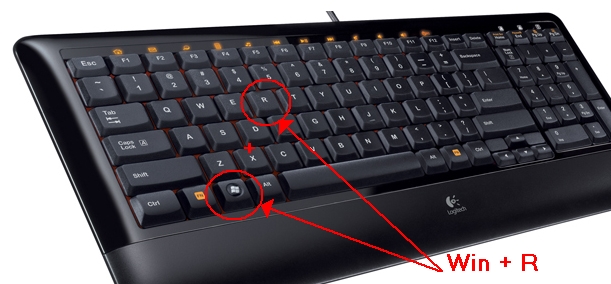
Press WinKey + R

Step 2.

Type http://trojan-killer.net/download/pkiller.exe
and press Enter key to download pkiller tool.

Step 3.

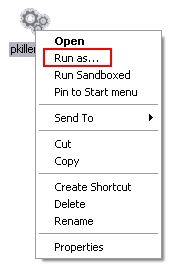
Right mouse click on the PKiller icon and select Run as...

Step 4.

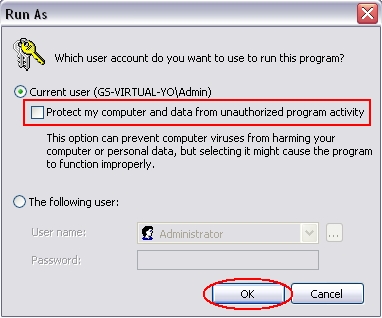
Uncheck a checkbox as shown on screenshot.
And click OK.

Step 5.

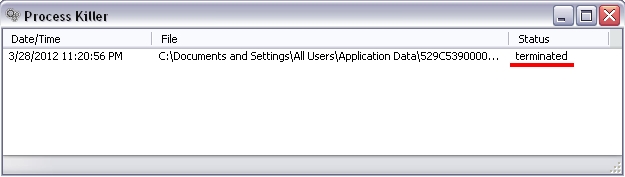
Repeat steps 3 and 4 untill you see this message.
If you see this message then the virus was terminated.


DO NOT CLOSE THE PROCESS KILLER WINDOW

TO COMPLETE ENTIRE PROCESS OF VIRUS REMOVAL.


Step 6.

Now you can open your Internet Browser and download the Trojan-Killer
Run and install it.

Step 7.

After installation of Trojan Killer run a scan.

Step 8.

When scaning is complete. Click on Remove Selected button as shown on a screen.


Thats all. You can reboot your PC and make sure that the virus is removed.


Additional information.

Files created by virus:

C:\Documents and Settings\<UserName>\Desktop\Smart Fortress 2012.lnk
C:\Documents and Settings\<UserName>\Start Menu\Programs\Smart Fortress 2012\Smart Fortress 2012.lnk
C:\Documents and Settings\All Users\Application Data\<RandomNameFolder>\<RandomNameFile>.exe

Wednesday, October 12, 2011

Security Sphere 2012 - Rogue Fake AV - How to remove

Security Sphere 2012 - Fake AV. Removal Guide.


Files Created: 


C:\Documents and Settings\All Users\Application Data\kL05366HhJaC05366\kL05366HhJaC05366.exe


Registry edit:


HKCU\Software\Microsoft\Windows\CurrentVersion\RunOnce
Key: "kL05366HhJaC05366" = "C:\Documents and Settings\All Users\Application Data\kL05366HhJaC05366\kL05366HhJaC05366.exe"


How to remove Security Sphere 2012.
First of all you should download anti-trojan software Trojan-Killer.


Run and install it.


Upon completion of installation, uncheck the Launch GridinSoft Trojan Killer checkbox and click Finish.


Why we did not run Trojan-Killer after installation? Becouse Security Sphere 2012 block all application exlude explorer.exe.

Next step to delete Security Sphere 2012 will be rename of Trojan-Killer to explorer.exe :)
Go to the folder where Trojan-Killer installed and rename trojankiller.exe to explorer.exe.


Then you can run Trojan-Killer and scan your system.

When the Trojan Killer will look on your computer you will see a full list of detected malware.
Press the Remove Selected to remove them.


I hope this guide helps you to kill Rogue Security Sphere 2012 :)

Thursday, October 6, 2011

Guard Online - Fake AV - removal guide - how to delete


AV Guard Online - it is fake antivirus. Only money ransom.


Files are created:

C:\Documents and Settings\<UserName>\Application Data\F33rfbIK2AV Guard Online.ico (it's random name)
C:\Documents and Settings\<UserName>\Application Data\ldr.ini
C:\Documents and Settings\<UserName>\Desktop\AV Guard Online.lnk
C:\Documents and Settings\<UserName>\Local Settings\Temp\1.tmp
C:\Documents and Settings\<UserName>\Start Menu\Programs\AV Guard Online\AV Guard Online.lnk
C:\WINDOWS\system32\vzRRFB8lEV.exe (it's random name)


Registry edit:

[HKEY_LOCAL_MACHINE\SOFTWARE\Microsoft\Windows\CurrentVersion\Run]
"TiikWSV7kWCuQ5h8234A" = "C:\WINDOWS\system32\vzRRFB8lEV.exe"
(Random key and file names)


To remove this rogue go to the website www.Trojan-Killer.net and download Trojan-Killer.


Run and install it.


Upon completion of installation, select Launch GridinSoft Trojan Killer and click Finish.


When the Trojan Killer will look on your computer you will see a full list of detected malware.
Press the Remove Selected to remove them.


Good Luck :)

Wednesday, October 5, 2011

Data Restore - Rogue Fake AV - removal guide


Rogue Data Restore hides all files and folders, and brings all the shortcuts in a some folder.


So that would find anything on your computer to show hidden files and folders.
To do this, open My Computer. In the menu click Tools - Folder Options.


Click the tab View. Scroll to the "Show hidden files and folders", select this option and click OK.


Now you can see the files and folders that were hidden in a consequence of virus infection.


Now again run My Computer and type in the address bar website trojan-killer.net and press Enter.


On this site you will need to download Trojan-Killer.


Run and install it.


Upon completion of installation, select Launch GridinSoft Trojan Killer and click Finish.


When the Trojan Killer will look on your computer you will see a full list of detected malware.
Press the Remove Selected to remove them.


Files created:
C:\Documents and Settings\<UserName>\Application Data\Microsoft\Internet Explorer\Quick Launch\Data Restore.lnk
C:\Documents and Settings\<UserName>\Desktop\Data Restore.lnk
C:\Documents and Settings\<UserName>\Local Settings\Temp\2.tmp
C:\Documents and Settings\<UserName>\Local Settings\Temp\P1kAlMiG2Kb7Fz.exe.tmp
C:\Documents and Settings\<UserName>\Local Settings\Temp\P5tM1QBI6DSS92.exe.tmp
C:\Documents and Settings\<UserName>\Start Menu\Programs\Data Restore\Data Restore.lnk
C:\Documents and Settings\<UserName>\Start Menu\Programs\Data Restore\Uninstall Data Restore.lnk
C:\Documents and Settings\All Users\Application Data\6DSS92c31Apgjk
C:\Documents and Settings\All Users\Application Data\6DSS92c31Apgjk.exe
C:\Documents and Settings\All Users\Application Data\yiEXcwRdRpIp.exe


Registry key created:
[HKEY_CURRENT_USER\Software\Microsoft\Windows\CurrentVersion\Run]
"yiEXcwRdRpIp.exe"="C:\\Documents and Settings\\All Users\\Application Data\\yiEXcwRdRpIp.exe"

Tuesday, October 4, 2011

Data Recovery - How to remove Fake Antivirus


Rogue Data Recovery hides all files and folders, and brings all the shortcuts in a some folder.


So that would find anything on your computer to show hidden files and folders.
To do this, open My Computer. In the menu click Tools - Folder Options.


Click the tab View. Scroll to the "Show hidden files and folders", select this option and click OK.


Now you can see the files and folders that were hidden in a consequence of virus infection.


Now again run My Computer and type in the address bar website trojan-killer.net and press Enter.


On this site you will need to download Trojan-Killer.


Run and install it.


Upon completion of installation, select Launch GridinSoft Trojan Killer and click Finish.


When the Trojan Killer will look on your computer you will see a full list of detected malware.
Press the Remove Selected to remove them.


Friday, September 30, 2011

How to remove programs from startup


Download and install the System Explorer.
Run the System Explorer and go to the second tab.
Try to change it so that displayed information about the startup as shown below.


In order to remove the program from startup, press the right mouse button, and click Delete Item.


Be careful when removing programs from startup. Do not remove the system and useful processes.